Lessons · Lesson 2 of 5
One cell, two modes, three working weeks
How the app works out one square of the capacity board, and why the same square can read green, amber or red without anybody touching the plan.
Lesson 2 of 5 · 26 min
What this lesson is about
The capacity board is a grid of coloured squares. Each square is one line in one week. Its colour comes from a division. Learn that division and the board stops being a mood. It becomes a number you can argue with.
The trap is that the app can do the division two ways. It picks one per square, silently. It also disagrees with itself about how long a working week is. None of that is hidden. It is simply never said on the screen. So a planner reads a colour and believes the wrong thing by it.
A line is six fields, and three of them are optional
Dewi opens Manage lines from the top of the capacity board. A production line row holds a name, a daily capacity in pieces, three optional minute inputs, and an archived flag.
| Field | Required | What it feeds |
|---|---|---|
| Name | Yes | The row label on the board |
| Capacity | Yes | Pieces per day, the denominator the proxy uses |
| Operators | No | How many sewing operators staff this line |
| Hours / day | No | The shift length |
| Efficiency % | No | The efficiency the line achieves |
| Archived | No | Hidden from the board, and reversible |
Under those fields the page shows two computed facts you cannot edit: Weekly capacity and SAM-minute capacity. SAM is the standard minute value: the work content of one garment, in minutes, added up across its sewing operations. If any one of the three minute inputs is blank, the second fact reads back a plain sentence. It says the minute capacity is not set, and that the board will use the pieces-per-day proxy instead.
Ranca's three lines are Line 1 and Line 2 at 900 pieces a day each, and Line 3 at 600. Line 1 also carries its minute inputs: 96 operators, 8 hours a day, 55% efficiency.
Where the working week comes from
Weekly capacity is the daily capacity multiplied by the factory's working days. Working days are seven minus the factory's rest days, and the rest days are a setting.
Three things about that setting are worth knowing before you read a single cell.
- The default is Saturday and Sunday. That is two rest days, so five working days.
- The app carries suggested rest days for thirteen sourcing countries. Indonesia is not one of them, so Ranca has to set its own.
- The setter refuses more than three rest days a week. The stated ground is that more is not plausible for a working factory. It also holds the result at one working day as a minimum.
Nobody at Ranca ever opened that setting. The floor works Monday to Saturday and rests Sunday, which is six working days. The workspace still holds the Saturday-and-Sunday default, which is five.
The same week, four ways
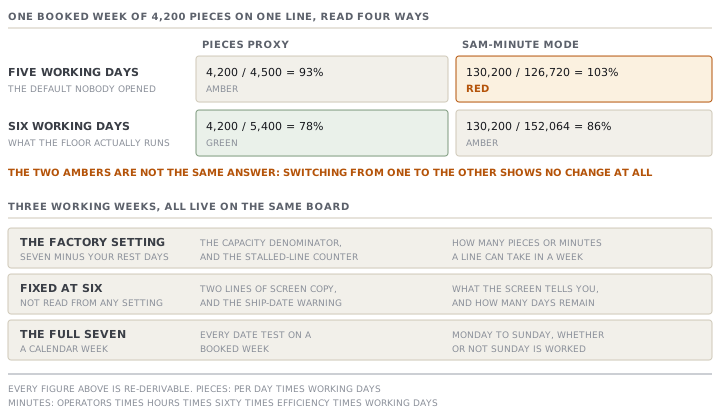
Take one square: Line 1, the week beginning Monday, with 4,200 pieces of ORD-1442 booked into it. STY-318 carries a standard minute value of 31.0 minutes a piece.
The pieces proxy divides the booked pieces by daily capacity times working days. The minute mode multiplies the booked pieces by the style's minute value, and divides by operators times hours times sixty times efficiency times working days.
| Working week | Pieces proxy | SAM-minute mode |
|---|---|---|
| Five days, the default nobody changed | 4,200 of 4,500, 93%, amber | 130,200 of 126,720, 103%, red |
| Six days, what the floor actually works | 4,200 of 5,400, 78%, green | 130,200 of 152,064, 86%, amber |
The same booked week is green, amber or red, depending on a setting nobody opened and a mode nobody chose. That is not a mistake in the arithmetic. Every one of those four numbers is correct for its own question. It is a reason to know which question your square is answering before you plan around its colour.
Now compare the five-day pieces proxy with the six-day minute figure, and notice something worse than a wrong colour. Both of them say amber. So a planner moving from one to the other sees no change at all, while the true answer has moved from an overload to comfortable.
Which mode a square uses is decided per square
The rule is all or nothing, and it is decided square by square. A square is worked out in minutes only when both of these hold.
- The line has all three minute inputs, present and above zero, so a minute capacity exists.
- Every order booked into that square carries a known standard minute value above zero.
If either fails, the whole square falls back to pieces. The source is explicit that a square is never half one and half the other. Dividing minutes by pieces per day, or adding a minute load to a piece load, produces a number that means nothing.
When the line could have done minutes but an order in the square lacked its minute value, the square carries a small est. marker. Its tooltip says a standard minute value is missing on an order. An unmarked square is load-accurate. That distinction is the honest one, and it is easy to miss on a busy board.
The minute value itself comes from the order's style, added up across its sewing operations. A style with no operations totals zero. The source deliberately reads that zero as unknown rather than as a real zero, which is what pushes the square back to the pieces proxy instead of dividing by nothing.
A subcontractor row has no minute inputs at all. Subcontractor squares are therefore always in pieces mode, and no marker appears, because the line could never have done minutes in the first place.
The bands, and the two edges
| Tone | The legend | The test |
|---|---|---|
| Grey | empty | Nothing booked in the square |
| Green | 85% or below, room to spare | Load over capacity is at most 0.85 |
| Amber | 85 to 100%, full | Above 0.85, and not over capacity |
| Red | over 100%, overloaded | Strictly over capacity |
Two edges catch people out, and both are deliberate.
The red test uses the exact ratio, not the rounded percentage. A square holding 4,501 pieces against a weekly capacity of 4,500 displays 100% and is red. The percentage on the screen and the colour of the screen are answering slightly different questions, and the colour is the stricter of the two.
A target with no capacity set is the other edge. Work booked against zero capacity reads 999%, because the app will not divide by zero and will not pretend the square is fine. In practice you rarely see it, because the allocation form refuses first. A line with no pieces per day is turned away with a message naming the Lines settings page. A subcontractor with none is turned away naming the supplier.
Three working weeks on one board
Here is the part to take to your own screen. The capacity board holds three different ideas of a working week at the same time, and each has a source line behind it.
| Length | Where it is used | Why it is that length |
|---|---|---|
| The factory's setting | The capacity denominator, and the stalled-line counter | Seven minus the rest days you set |
| Six days | Two lines of on-screen text, and the ship-date warning | Fixed in the words and in one formula |
| Seven days | The booked week's calendar footprint | A booked week runs Monday to Sunday whatever the rest days are |
The six-day text is in two places. The sentence above the heat-map ends with the words capacity is pieces per day times six working days. Step two of the panel that appears when you add a new line says the same thing. Both are fixed text. Neither is worked out from your setting, so both are wrong for a factory resting Saturday and Sunday, and right for one resting Sunday only.
The six-day formula is in the ship-date warning shown while you are splitting an order. It turns calendar days into working days by taking six sevenths of them, and the source comment says plainly that this is an honest estimate.
The seven-day footprint is the deliberate one. An allocation snaps to the Monday of its week, and every date test on it uses the Sunday six days later, whether or not that Sunday is worked. The source says why: the work is booked in that week whatever the rest days are, so the date test is kept apart from the capacity test on purpose.
What the board refuses
The allocation form is deliberately strict, and each refusal names the thing to fix.
- A quantity that is not a whole number above zero is refused before anything else happens.
- A target with no capacity is refused, and the message names where to set it.
- Booking more than the order has left is refused, and the message names the remaining and the total quantity.
Notice what is not on that list. Nothing stops you booking a line past its capacity. Over-capacity is a colour, not a gate, which is the right way round: a factory genuinely does plan an overloaded week and then fix it. Dragging a job on the schedule board moves it without re-checking anything at all, because the same reasoning applies to a move.
Check yourselfA square on Line 1 shows 78% in green. Dewi adds the missing operators, hours and efficiency to Line 3, a different line, and the next morning the same Line 1 square reads 103% in red with nothing rebooked. What happened, and is either reading wrong?Show the answer
Nothing happened to Line 1, and that is the useful part of the question. Mode is decided per square, from that square's own line and its own booked orders. Editing Line 3 cannot change a Line 1 square, so this cannot follow from that edit alone. Two edits would do it without any rebooking. One is somebody filling in Line 1's own three minute inputs, which switches its squares from the pieces proxy to the minute computation. The other is somebody adding operations to STY-318, so its standard minute value stops being unknown and the square stops falling back. Neither reading is wrong. The proxy answers whether the pieces fit at the line's nominal daily rate. The minute figure answers whether the work content fits the operator minutes available. For a garment slower than the nominal rate assumes, the second is the one that comes true on the floor.
Check yourselfRanca's floor runs Monday to Saturday. Somebody finally opens Factory settings and sets the rest days to Sunday only. Name three numbers on screen that change, and one that does not.Show the answer
The weekly capacity fact on every line changes, because it multiplies by working days and there are now six of them rather than five. Every load percentage on the heat-map changes with it, in both modes, since both divide by a capacity that just grew by a fifth. The stalled-line counter changes too, because it counts working days since the last floor output and will now count Saturdays, so a line that goes quiet is flagged sooner. What does not change is the sentence at the top of the board. It is fixed text saying six working days, and it was simply wrong before and is accidentally right now. Nor does the day list on the schedule board, which offers Monday to Saturday whatever the setting says.
Prompt · Check one capacity cell by hand
Before you plan around a colour, or the first time a cell's colour surprises you.
Help me re-derive one cell of my MerchandiserOS capacity heat-map from its inputs, so I know what its colour actually means.

I will give you: the line's pieces-per-day capacity; its operators, hours per day and efficiency percentage, or the word BLANK for any of those that are not set; my factory's rest days as set in Factory settings; the pieces allocated into the cell; and, for each order in that cell, its style's total standard minute value or UNKNOWN.

Work through it in this order and show every step.

First, the working days: seven minus my rest days. Tell me the number and warn me if it differs from the days my floor actually runs.

Second, decide the mode. Minute mode needs all three minute inputs present and positive AND a known positive minute value on every order in the cell. If either fails, the whole cell is in pieces mode; say which condition failed.

Third, compute the load and the capacity in that mode's own unit, then the percentage, then the tone: grey when nothing is booked, green at or below eighty-five per cent of capacity, amber above that but not over capacity, red strictly over capacity. Use the exact ratio for the tone, not the rounded percentage.

Fourth, and this is the part I want most: recompute the whole thing in the OTHER mode and with the working-day count my floor actually runs. Give me all four answers in a small table so I can see how far apart they are.

Do not tell me the cell is fine. Tell me what each of the four numbers is answering, and which of the four matches the question I should be asking.
AI can make mistakes — check anything you act on.