Lessons · Lesson 3 of 5
What issuing really creates
The six split methods, the tolerance, the four warnings and their real defaults, and the rows that appear the moment you confirm.
Lesson 3 of 5 · 22 min
What this lesson is about
Issuing production orders is the moment a buyer order becomes work. Before it, the factory has a promise. After it, every department has a card with its name on it.
It is also the widest gate in the module. Most of what it shows you is advice, not a rule. Four warnings can be on screen at once, and all four can be walked past. The two things that will genuinely stop you are not warnings at all. They arrive as plain refusals, which is why they are easy to miss.
The six methods
Rina opens ORD-1442 from Plan production and lands on the split planner. Six method chips sit along the top. A chip is greyed when the order has nothing to build that split from.
| Method | It needs | It produces |
|---|---|---|
| By colour | Colourway lines | One production order per colourway |
| By size | Size lines | One per size, added up across colours |
| Mixed | Nothing | One assorted run, all colours and sizes |
| By shipment | Planned shipments | One per shipment that is not cancelled |
| By line | Active lines | The quantity spread evenly across them |
| Whole order | Nothing | One production order for everything |
The planner does not start blank. If the order has two or more different colourways it opens on the colour split. Otherwise it opens on a single whole-order row.
ORD-1442 has three colourways, so Rina sees three rows: Rinse 8,400, Mid Stone 9,600 and Ecru 6,000.
Two of those methods have arithmetic worth knowing.
By line divides evenly and puts the remainder on the earliest batches. Twenty-four thousand across three lines is 8,000 each, with nothing left over. Had the order been 24,002 pieces, the first two batches would carry 8,001 and the third 8,000.
By colour groups on the colourway record where there is one. Where there is none, it groups on the colour name folded to lower case. So two lines typed Ecru and ecru, with no colourway record behind them, merge into one slice. That is usually what you wanted, and occasionally a surprise.
Every row can be edited after the method has run. Rename it, change its quantity, add a row, delete a row. The moment you touch any of them the method chip drops to manual, because the rows are no longer what the method produced.
The tolerance is five per cent, and it is not a rounding error
The rows are checked before the button will do anything. Each slice must be a whole number above zero. Then the total is compared to the order.
The total may sit anywhere within five per cent either side. For ORD-1442 that is a floor of 22,800 and a ceiling of 25,200. Outside that band the planner refuses, and the message names both figures and the tolerance.
Inside the band but not exact is allowed, and the app marks it as within tolerance rather than as correct. The reasoning in the source is that real cutting rarely lands exact. That is true, and it is also a five per cent hole. A split totalling 22,800 pieces against a 24,000 piece order is accepted in silence. The missing 1,200 pieces are nobody's job until somebody notices that the coverage bar on Plan production stopped short.
Two refusals that are not warnings
Before any of the advice, two conditions are checked when you confirm. Each one throws a named refusal, not a coloured note.
An archived order is refused outright, and the message says it is retired and tells you to restore it first. An order whose status is anything other than Confirmed or In production is refused, and the message names the status it actually has and tells you to confirm the order first.
Both name the blocker. Neither can be overridden. If you remember one thing from this section, it is this: the loud coloured panel below is the soft part of this screen, and these two quiet sentences are the hard part.
The four warnings, and what each really tests
Under the rows sit four toggles. Three are on when you arrive and one is off.
| Warning | Default | Fires when |
|---|---|---|
| Blockers | On | The materials gate has a reason, which it then quotes |
| Ship date | On | The ship date has passed, or the pieces need more working days than remain |
| Over-capacity | On | The total exceeds free line capacity in the weeks up to the ship date |
| Min run size | Off | Any slice is below the minimum run, which defaults to 300 pieces |
Each of the four is worked out from gathered facts, and each stays silent when the facts are missing rather than inventing a risk. No blocker reason means no blocker warning. Unknown capacity means no capacity warning.
Take Rina's three warnings on the day she issues.
Ship date. The three lines total 2,400 pieces a day. Twenty-four thousand pieces at that rate rounds up to 10 working days. The ship date is 11 calendar days away, and the app turns that into working days by taking six sevenths, which floors to 9. Ten is more than nine, so the warning fires and quotes all three numbers.
Over-capacity. The free capacity across every line and subcontractor in the weeks up to the ship date comes to 21,500 pieces. The split totals 24,000, so the warning fires and names both.
Min run. Off by default, so it says nothing. Had Rina turned it on and split by shipment instead, the air top-up of 240 pieces would be below the 300 piece minimum, and the warning would name that slice.
Every warning can be walked past, and the walk is recorded
With one or more warnings showing, the confirm button changes its own words. It stops saying Issue production orders and starts saying Issue anyway (override).
The confirmation panel gains a fourth step, telling you the override is recorded on the order's activity. It is. The warnings are joined into one note and written into the activity line the issue creates, each one prefixed with its kind. So the record says which warnings were on screen and what each of them said.
This is the app's standard shape for a judgement call: the action is not removed, it is renamed and logged.
What appears the moment you confirm
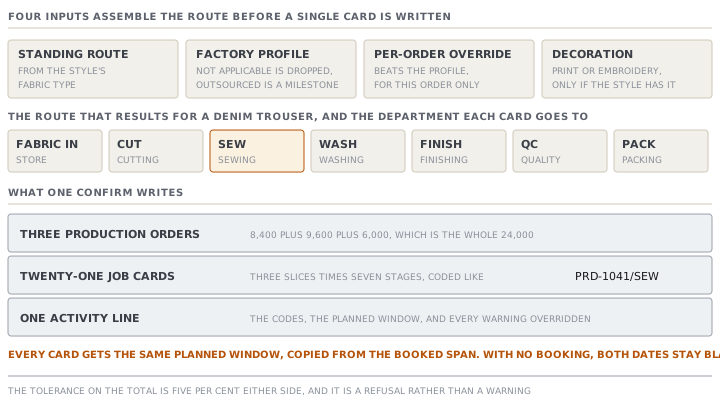
Three things are written, in this order.
- One production order row per slice, each with a code beginning
PRD-, its quantity, and the basis it was sliced on. - One job card per stage of the order's route, on every production order, coded as the production order's code, a slash, and the stage in capitals.
- One activity line on the buyer order naming the count, the codes, the planned window, and any override.
The stages come from the order's route, and the route is assembled rather than picked. It starts as the standing route for the garment's construction, which comes from the style's fabric type. STY-318 is denim, so its standing route is fabric in, cut, sew, wash, finish, QC and pack.
That route is then filtered by the factory's own capability profile. A step the factory marks not applicable is dropped entirely, and the remaining stages are renumbered. A step marked outsourced becomes a subcontracted milestone carrying its vendor and lead time. A per-order override beats the profile for that one order.
Print and embroidery are not in any standing route. They are added after cut, and only when the style's operations or artwork actually mention them, so a plain trouser never gets a phantom print stage.
Each stage becomes a job card owned by a named department: cut to Cutting, sew to Sewing, wash to Washing, finish to Finishing, QC to Quality, pack to Packing. Anything unmapped falls back to the stage's own name.
The dates on those cards
Every card created in one issue carries the same planned start and planned end: the order's allocation span, from the earliest booked Monday to the Sunday ending the last booked week.
That is coarse, and the source says so. A slice carries no week of its own, so there is nothing finer to copy. A cutting card and a packing card on the same slice therefore show identical planned dates, which is a window rather than a schedule.
With no allocation at all, the planned dates are left blank and the activity line says so. Blank is the honest answer here, and it is the same rule the rest of the app follows: a missing date is never filled in with today.
Check yourselfAn order for 24,000 pieces is split into two slices of 11,400. The planner sees no error and issues. What has just happened, what will the next screen show, and where does the difference surface?Show the answer
The split totals 22,800, which is exactly five per cent below the order, so it sits on the floor of the tolerance band and is accepted. Nothing is wrong on this screen and no warning fires, because the tolerance check is the only test of the total and it passed. Two production orders are created carrying 22,800 pieces between them, with job cards adding up to the same. The difference surfaces on Plan production, whose coverage column compares the quantity committed to production orders against the order quantity. It will read partly planned rather than fully planned, with 1,200 pieces remaining. Nothing raises an exception about it, so the coverage column is the only place it shows.
Check yourselfA planner reports that the ship-date warning is nonsense: it says only nine working days remain, but the calendar shows eleven days and the factory works six of every seven. Is the warning wrong?Show the answer
The warning is doing exactly what it says, and the planner has caught a real coarseness. It turns calendar days into working days by taking six sevenths and rounding down, so eleven calendar days become nine rather than the nine or ten you would get by counting actual days against the factory's rest days. It does not read the factory's rest-day setting at all, unlike the capacity denominator on the same board, so a factory resting one day a week and a factory resting two get the same conversion. The source labels it an honest estimate, and it errs towards fewer days, which makes the warning fire slightly early rather than slightly late. For a factory resting Sunday only it is very nearly right. For one resting Saturday and Sunday it overstates the days available.
Prompt · Review a split before I issue it
With the split planner open and the confirm button showing, before you press it.
I am about to issue production orders in MerchandiserOS and I want a second reading of the split before I confirm.

I will paste: the buyer order number, its quantity, its ship date and its status; the split rows with their labels and quantities; which of the four warning toggles are on; and the exact text of every warning currently showing.

Check five things and answer each separately.

One, the total. Add my rows. Tell me the total, the difference from the order quantity, and whether that sits inside the five per cent tolerance. If it is inside but not exact, say how many pieces are unaccounted for and tell me that nothing in the app will chase them.

Two, the hard refusals. The order must not be archived and its status must be Confirmed or In production. These are not warnings and cannot be overridden; tell me if either will stop me.

Three, each warning on screen. For each one, restate in plain words what it is claiming, and tell me what specific fact would have to change for it to stop firing.

Four, the dates. Ask me whether this order has allocations. If it does not, tell me the job cards will be created with blank planned dates and that allocating afterwards does not fill them in.

Five, the override. If any warning is showing, my confirm button now says Issue anyway. Write me the one sentence I would want to read on the activity log in three months explaining why I pressed it.

Do not tell me to ignore a warning, and do not tell me a warning is safe to override. Tell me what it costs if it turns out to have been right.
AI can make mistakes — check anything you act on.