Lessons · Lesson 1 of 5
The buyer's number is not your number
What the create form insists on, what it fixes forever without telling you, and where the parts of the buyer's purchase order actually land.
Lesson 1 of 5 · 20 min
What this lesson is about
A buyer sends a purchase order. Somebody has to turn that paper into a record the software can work with. This lesson is about that translation. It is also about the parts of the buyer's paper that have no box to go in. Get it wrong and the same order exists twice. Or the buyer's own reference never reaches the paper you send back. Or a term you agreed turns out to be the one thing you can no longer change.
Maritsa Outerwear is a quilted-outerwear factory in Chirpan, Bulgaria. It runs five sewing lines, employs 410 people and sells almost entirely into northern Europe. Four people appear across this course.
- Rositsa Zhelyazkova is the merchandiser. The order desk is hers, and she does most of the clicking in these five lessons.
- Vencislav Damyanov owns the business and is the workspace Owner.
- Ognyan Petkov is the sourcing officer. He raises the purchase orders.
- Milena Kaloyanova plans the lines.
The order followed through all five lessons is ORD-1077: style STY-266, a women's quilted liner jacket, for Vindelbo, a Danish clothing chain. Their buyer is Signe Aagaard. Vindelbo's own purchase order is numbered VB-70318 and is dated 11 January 2027.
Say the basis once, because the whole course rests on it. Every screen name, button label, field, validation message, status and count on these pages was read out of the application's own source, not out of a description of it. Where a lesson gives an arithmetic result, the working is shown so you can redo it. Where something depends on how your own workspace is set up, the lesson says so and names the setting.
The form is shorter than the paper
Rositsa opens Orders and presses New order. A drawer slides in. It is a small form, and Vindelbo's purchase order is three pages.
Five things are compulsory. The server refuses to create the order without them, and the message it gives is the one in the last column.
| Field | Compulsory | If you leave it | The message |
|---|---|---|---|
| Buyer | Yes | refused | Please choose a buyer, or add a new one. |
| Style | Yes | refused | Please choose a style, or add a new one. |
| Ship date | Yes | refused | Please choose a ship date. |
| Incoterm | Yes | refused | Please choose an incoterm. |
| Manufacturing model | Yes | refused | Please choose a manufacturing model. |
| Quantity | Only with no breakdown | refused | Enter the quantity in pieces — a whole number greater than 0. |
| Line-feed date | No | stays absent | — |
| Agreed price per piece | No | stays absent | — |
| Currency | No | falls back to USD | — |
| Notes | No | stays absent | — |
The Incoterm is the delivery term: the standard three-letter code that says how far you carry the goods and who pays for what. FOB, CIF and DDP are all incoterms. The manufacturing model says how much of the job is yours: CMT means the buyer sends the fabric and you cut, make and trim it, while a full-package model means you buy the materials too.
Two of those compulsory five deserve a second look before you click, and the reason is in the next section.
Buyer and Style are pickers with an add a new one option beside them. Type a name that does not exist and the app creates the record and links it. That is deliberate. You are never blocked from writing down a real order because a master record has not been set up yet. It is also the easiest way to end up with two buyers who are the same company, so read the picker before you type.
The two choices you cannot take back
Incoterm and Manufacturing model are dropdowns, and they are compulsory. They are also not editable afterwards.
The order detail page keeps a list of the columns a user may change, and there are twenty-five of them. Incoterm is not on it. Manufacturing model is not on it. Currency is not on it either. On the order screen those three show as plain facts with no Edit button, because there is no action behind them to call.
The reason is visible in the code rather than guessable. Those three fields feed a derived field, costing_basis, worked out once at creation from the incoterm and the manufacturing model together. FOB with a full-package model gives FOB. Any model called CMT gives CMT whatever the incoterm says. CIF gives CIF, and DDP gives LDP. Nothing works it out again later, so nothing offers to.
Where the buyer's paperwork actually lands
Vindelbo's purchase order carries a number of its own, VB-70318. Nothing on the create form asks for it.
That is not an oversight, and it is worth understanding rather than working round. The app's identity for this order is the code it makes itself. Once the row is inserted it claims the next order code from a counter, and Maritsa's counter is the shipped default: prefix ORD, starting at 1001, no padding zeros. Rositsa's order becomes ORD-1077.
The claim is a single statement that adds one to the counter and reads back the value it produced. So two people creating an order at the same instant can never be handed the same code. A create that fails afterwards leaves a gap in the numbering, which is harmless. A duplicate code would not be.
The buyer's own number lives on the detail page instead, in a block called Reference numbers, with the other parties' references. Seven controls sit there.
| Control | Whose reference | On ORD-1077 |
|---|---|---|
| Buyer PO # | Vindelbo's | VB-70318 |
| LC # | the bank's | blank until the credit is advised |
| Partial shipments (LC) | the credit's terms | Allowed |
| Agent / booking ref | the agent's | blank |
| Forwarder ref | the forwarder's | blank |
| BL # | the carrier's | blank until the goods sail |
| Destination country | the order's ship-to | DK |
Two of those need a word. LC is the letter of credit, the bank's promise to pay you once you produce the right documents. BL is the bill of lading, the shipping document the carrier issues when the goods go on the vessel.
Every one of the seven except Partial shipments is optional free text of at most eighty characters, and clearing one puts it back to absent rather than to an empty string. Three of them cannot possibly be known on the day the order is created. That is the point of putting them on the record rather than on the form.
Filling in Buyer PO # is not decoration. It is the field the printed order confirmation reads, and it prints twice on that document. Once in the header block beside the issue date, and once under the buyer's name. Leave it blank and Vindelbo receives a confirmation that never mentions the order they think they placed.
What one click actually writes
Rositsa fills the form and saves. More happens than she sees.
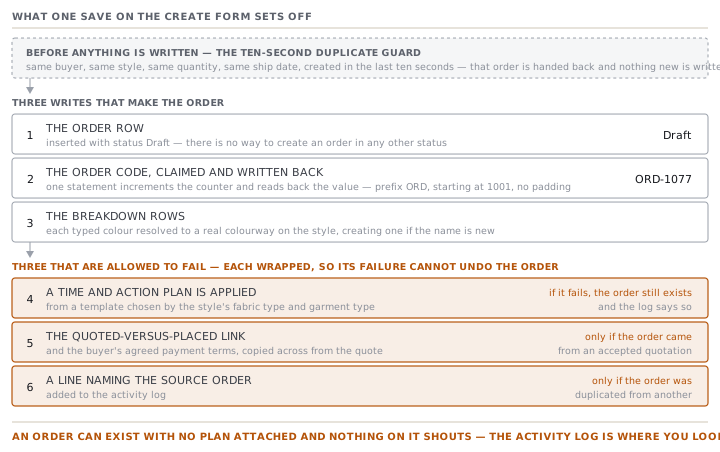
The order row is inserted with status Draft, always. There is no way to create an order in any other status. Then the code is claimed and written back. Then the breakdown rows are inserted, and each typed colour is matched to a real colourway on the style, creating one if the name is new.
Then three further things are attempted, and this is the part worth knowing. Each one is wrapped so that its failure cannot undo the order.
- A Time and Action plan is applied from a template chosen by the style's fabric type and garment type. The plan is the order's dated milestone list. If applying it fails, the order still exists and the log says so.
- If the order was pulled from an accepted quotation, the quoted-versus-placed link is written and the buyer's agreed payment terms are copied across from the quote.
- If the order was duplicated from another, a line naming the source is added to the activity log.
The comment in the source is blunt about the intent: a scheduling failure must never block order creation. The consequence for you is that an order can exist with no plan attached, and nothing on the order will shout about it. The activity log is where you look.
The ten seconds that save you from a double order
There is one more guard, and it is the reason double-clicking Save does not produce two orders.
Before inserting anything, the app looks for an order with the same buyer name, the same style name, the same quantity and the same ship date created in the last ten seconds. If it finds one, it hands that order back instead of writing a new one. Rositsa gets taken to ORD-1077 twice and there is only ever one ORD-1077.
Read the four fields it matches on carefully, because they tell you what the guard does not cover. Two orders for the same buyer and style, same quantity, same ship date, entered eleven seconds apart are two orders. So are two entered a second apart with different prices, because price is not one of the four. The guard defends you against a slow network and an impatient finger. It does not defend you against two people doing the same job.
Check yourselfVindelbo places two identical drops of STY-266, both 4,000 pieces, both shipping 7 May, one for Denmark and one for Sweden. Rositsa enters them one after the other. What does the app do?Show the answer
It depends entirely on how fast she types. The duplicate guard matches on buyer, style, quantity and ship date, and these two orders agree on all four. Enter the second within ten seconds of the first and she is handed the first one back, with no warning and no second order. Take longer than ten seconds and she gets two orders, which is what she wanted. The destination country is not part of the match, and it is not on the create form anyway. Change one of the four fields, or wait, or check the list before saving.
Prompt · Turn a buyer's purchase order into a record with nothing dropped
When a buyer's PO has landed and you are about to type it into the order form.
Help me read a buyer's purchase order against the fields an order record actually has, so nothing on their paper is quietly lost.

I will paste, or describe: the buyer's purchase order in full, including their own PO number, the delivery terms, the payment terms, any bank or letter-of-credit detail, the destination, the size and colour split, the price, and any conditions written in prose rather than in a box.

First, sort every line of their paper into four groups and label each one. Group one: goes on the create form. Group two: goes on the order record after it is created, as a reference or a date or a term. Group three: does not belong on the order at all and belongs on the style, the buyer record or the shipment. Group four: has nowhere to go in the software and must be kept as a note or as an attachment. For group four, say plainly that it will not be enforced by anything.

Then focus on the two things that cannot be changed after creation: the Incoterm and the manufacturing model. Read the buyer's paper back to me and tell me exactly which words in it decide those two. If their paper could mean either of two Incoterms, say so and tell me who to ask before I save.

Then ask me three questions I probably have not asked. What is the buyer's own reference number, and will it be printed on the confirmation I send back. What quantity tolerance did we actually agree, in writing. And is this order a repeat of one we have run before, in which case I should duplicate rather than retype.

Three rules. Do not invent a value for anything the buyer's paper does not state — write unknown and name the person to ask. Do not tell me a term is standard or usual as a way of filling a gap. And if the paper contains a condition that no field can hold, say so in one sentence rather than finding it a home it does not fit.
AI can make mistakes — check anything you act on.
What to take away
- The create form has five compulsory fields, and a sixth, the quantity, that becomes compulsory when you do not give a colour and size breakdown.
- Incoterm, manufacturing model and currency are chosen once and cannot be edited afterwards from the order screen. Get them right, or duplicate and cancel.
- The buyer's own PO number is not the order's identity. It is an optional reference on the detail page, and the printed confirmation reads it.
- The order is always created as a Draft, and three follow-on steps are allowed to fail quietly. Read the activity log after creating an order.
- Saving twice inside ten seconds gives you one order. Saving the same thing twice on Monday and Tuesday gives you two.